How to Build a Live Looping Setup in Ableton Live (No Hardware Looper Required)
How to Build a Live Looping Setup in Ableton Live (No Hardware Looper Required)
Hardware loopers are great on paper: stomp a pedal, record a loop, layer on top. But once you bring them into a DAW-based live setup, the cracks start to show. Sync issues, fixed routing, no undo, no DAW integration — and a price tag that assumes you have no laptop on stage.
If you're already running Ableton Live for your live sets, you don't need a hardware looper. You need something that lives inside your session, syncs to your grid, and gives you full control from a single interface. That's exactly what LoopMonster is built for.
What You Need
Before we dive in, here's what this setup requires:
- Ableton Live 12 (Suite or Standard with Max for Live add-on)
- Max for Live (included in Suite, or available as a separate add-on)
- LoopMonster — the Max for Live looping device (grab it here)
- An audio input: microphone, instrument, or a return track from your session
Once those are in place, you're a few minutes from your first quantized loop.
Step 1: Create an Audio Track and Load LoopMonster
- In Ableton Live, create a new Audio Track (Cmd+T / Ctrl+T).
- Open your User Library or the folder where you installed LoopMonster.
- Drag LoopMonster.amxd onto the audio track. It will load as a Max for Live device in the device chain.
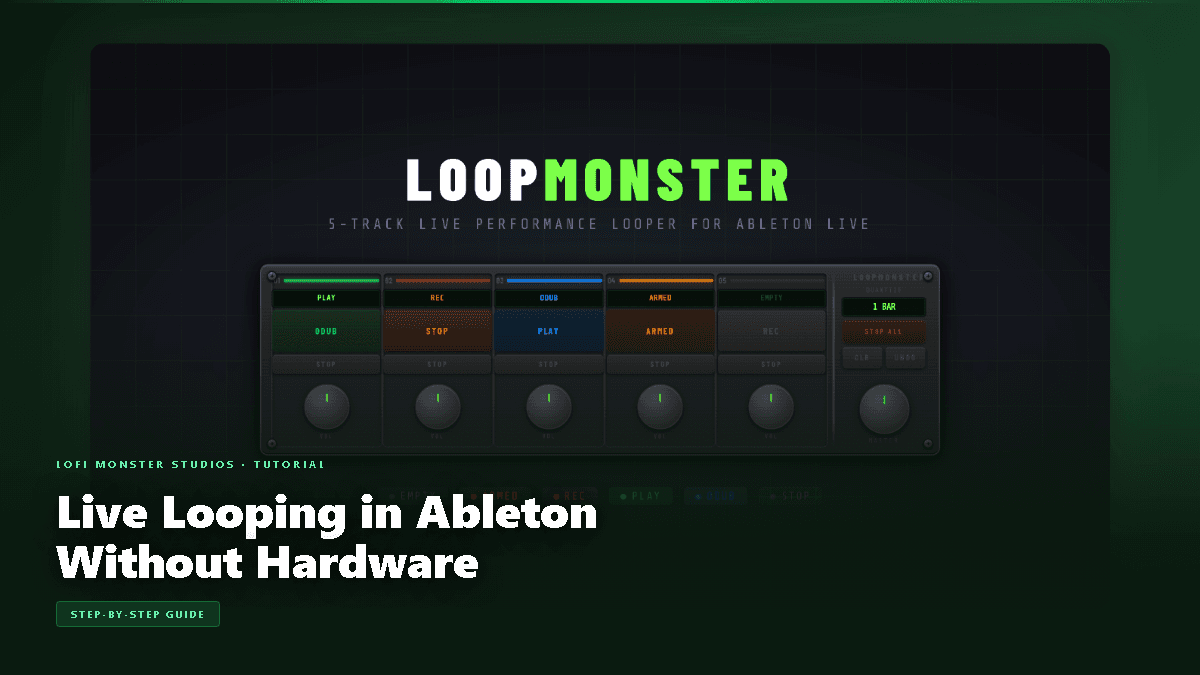
- Resize the device to see all controls — LoopMonster has a clean, single-panel interface with labeled buttons for each track and global controls along the bottom.
Step 2: Route Your Audio Source
LoopMonster sits on an audio track, so routing is straightforward:
For a microphone or instrument plugged directly into your audio interface:
- Set the track's Audio From to your interface input (e.g., Ext. In → 1/2).
- Make sure Monitor is set to In or Auto depending on whether you want to hear the input live.
For looping internal sounds (synths, drum racks, other tracks):
- Set the track's Audio From to the source track you want to capture.
- Set Monitor to In.
- This is great for capturing a synth riff or a drum bus on the fly.
For a send/return setup:
- Route a Return Track's output into the LoopMonster audio track. This lets you loop anything that's being sent to that return — a flexible option for complex rigs.
Step 3: Record Your First Loop
This is where LoopMonster earns its name. The recording flow is designed for live use — everything is quantized to Ableton's transport, so your loops always land on the beat.
- Set your loop length. Before recording, choose how many bars you want the loop to be. LoopMonster lets you set this per track.
- Enable QUANTIZE. Make sure the QUANTIZE button is active. This ensures recording starts and stops on bar boundaries — even if you hit the button slightly early or late.
- ARM the track. Press the ARM button on the LoopMonster track you want to record to. The track arms and waits.
- Hit record. Press the REC button. LoopMonster waits for the next bar boundary (thanks to quantize), then begins recording.
- Stop recording. Press REC again to stop. LoopMonster automatically trims the loop to the correct length and begins looping immediately.
Your first loop is now running in sync with Ableton's transport.
Step 4: Build Layers with Overdub
Once your base loop is running, you can layer on top of it without stopping playback:
- With the loop playing, press OVERDUB (or hold the overdub modifier, depending on your LoopMonster version).
- Play or sing your next layer. LoopMonster blends the new audio with the existing loop in real time.
- Press OVERDUB again to stop overdubbing and return to playback.
Repeat this process to build up dense, layered textures — a chord progression on the first pass, a melody on the second, percussion on the third.
Tip: Keep your overdub layers short and musical. It's easy to muddy the mix if you're overdubbing continuously. Treat each pass like a new instrument entering the arrangement.
Step 5: Use Global Controls for Breakdowns and Resets
LoopMonster's global controls are what make it genuinely useful for live performance:
- Stop All — Stops all loops simultaneously. Use this for dramatic breakdowns or to create space in your set. All loops remain in memory, ready to restart.
- CLR (Clear) — Clears all loop content. Use this to reset and start a new section from scratch. A CLR mid-set is the software equivalent of hitting the reset button on a hardware looper — except you can undo it.
- Mute per track — Mute individual loop tracks independently without clearing them. Great for drop-and-build arrangements.
Practice these controls before your set so they're second nature under pressure.
Step 6: MIDI Map Everything for Hands-Free Control
For a real live performance setup, you don't want to click with a mouse. MIDI mapping lets you control LoopMonster from a footswitch, pad controller, or any MIDI device.
- Enter MIDI Map Mode in Ableton (Cmd+M / Ctrl+M).
- Click the LoopMonster button you want to map (REC, OVERDUB, Stop All, CLR, etc.).
- Press the physical button or key on your MIDI controller.
- Exit MIDI Map Mode.
Recommended footswitch layout:
- Footswitch 1: REC (track 1)
- Footswitch 2: OVERDUB (track 1)
- Footswitch 3: Stop All
- Footswitch 4: CLR
With this setup, your hands stay free for your instrument and LoopMonster responds to your feet — exactly like a hardware looper, but fully inside Ableton.
The Result: A DAW-Native Looping Rig
When you put it all together, you have a looping setup that:
- Stays in sync with your Ableton session at all times
- Records quantized loops without timing errors
- Layers overdubs in real time
- Integrates with your existing effects and routing
- Responds to MIDI from any controller or footswitch
No hardware looper comes close to this level of DAW integration — and LoopMonster costs a fraction of what you'd spend on a dedicated unit.
Get LoopMonster
Ready to build your live looping rig? Download LoopMonster at LOFI Monster Studios and have your first loop running in Ableton Live today.