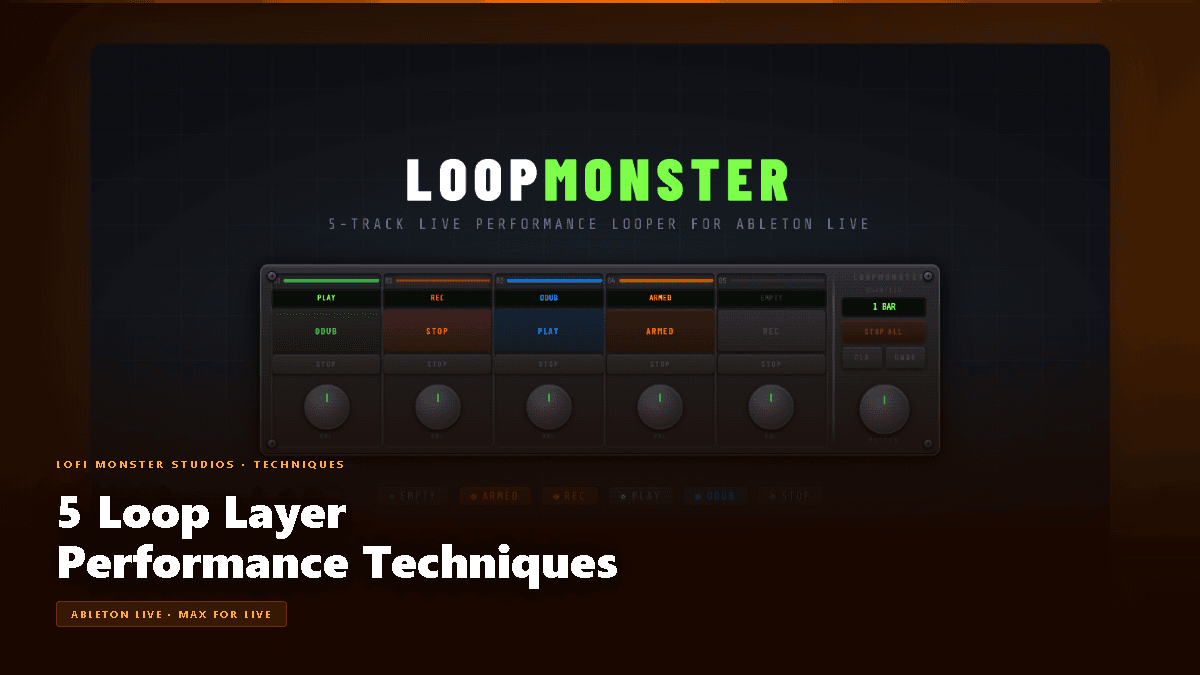
7 Live Performance Techniques Using Loop Layers in Ableton
Most articles about live looping in Ableton point back to a DJ TechTools piece from 2015. It was groundbreaking for its time, but it predates Ableton Live 11, the Session View improvements in Live 12, and the entire modern generation of Max for Live looping devices. The workflow has changed. The tools have changed. The ceiling of what one performer can do alone on stage has changed.
This is the 2026 update.
There is a reason some live electronic sets feel alive and others feel like someone hit play on a playlist. The difference is rarely the gear — it is technique. Having the right tools matters, but knowing how to use them in the moment is what separates a compelling performance from a static one. LoopMonster gives you the infrastructure; these seven techniques are the vocabulary.
Setting Up Ableton for Live Looping Techniques
Before diving into technique, your Ableton session needs to be configured for performance — not production. A few settings make the difference between a clean live looping rig and a frustrating mess.
Session View is your stage. Arrangement View is for composition. Everything described in this guide happens in Session View. Set your default clip slot quantization to 1 Bar (Preferences → Record/Warp/Launch → Global Quantization). This ensures every loop you record snaps cleanly to the grid, no matter when you hit the button.
Clip Launch Quantization. In the Clip Launch box (bottom-left of each clip), set Quantization to Global so all clips defer to your master setting. During a set you can override individual clips if you want tighter or looser triggering.
Follow Actions for texture loops. For ambient texture clips you want to run indefinitely, set Follow Action to No Action with Action Chance at 0%. For rhythmic loops that should loop seamlessly, set Follow Action to Again (loop forever). This prevents clips from jumping to the next slot unexpectedly mid-performance.
Metronome and click track. Turn the metronome on during sound check, then route it to a separate output for your in-ear monitor only — the audience never hears it. In Ableton's Audio Preferences, route your cue output to a headphone amp channel. Your headphones click; the PA does not.
Record into scene rows. Organize your session vertically — each row (scene) represents a section of your performance: Intro, Build, Peak, Breakdown, Rebuild. This gives you a visual map of where you are in the set without having to think.
Pre-load your backing clips. Any fixed loops — your kick pattern, your chord bed — should already be loaded and armed before you walk on stage. Leave blank slots open for live-recorded improvisation. This hybrid approach is how most professional live performers work.
Technique 1: Tension Build with Overdub
Start your set or a new section with a single, minimal loop — a kick pattern, a single chord stab, a breath of white noise. Let it breathe. Then, one by one, overdub layers on top of it using LoopMonster's OVERDUB mode.
Step-by-step in Ableton Live 11/12:
- Launch your seed clip (1–2 bars, simple rhythmic or tonal element) in Slot 1.
- Arm Slot 2, enable OVERDUB mode in LoopMonster.
- Wait for the downbeat indicator — recording starts quantized automatically.
- Play your first layer for 4 bars, then hit OVERDUB off. The loop is captured.
- Repeat for Slots 3 and 4, each time waiting at least 4 bars between additions.
What LoopMonster adds: The synchronized OVERDUB mode means your new layer is always quantized to the master loop length. You cannot accidentally record a 3.5-bar loop. Every addition locks to the grid.
Artist reference: Imogen Heap's live performances are built almost entirely on this technique — she starts with breath and whisper vocals, overdubs hand percussion, then keyboards, then processed vocals, until a dense arrangement exists from nothing.
Common mistake: Overdubbing too fast. Dumping three layers in two minutes sounds frantic, not powerful. Give each layer room. The audience needs to absorb what just happened before you add more. A mental rule of "wait 4 bars minimum" forces the restraint that makes this technique work.
Technique 2: The Breakdown Drop
This is one of the most effective moments you can create in a live set, and LoopMonster makes it clean and reliable.
At the peak of your build — when the loop is dense with layers — use the Stop All function (mappable to a single button or footswitch) to cut everything simultaneously. Drop into silence or a single stripped element. Let the audience sit in that space for a measure or two. Then relaunch your core loop and build back up.
Step-by-step in Ableton Live 11/12:
- With 4 loops running at peak density, MIDI-map a single button to the Stop All function in LoopMonster.
- Let the energy peak for 8–16 bars.
- Hit Stop All precisely on beat 1. Watch the audience's heads snap up.
- Hold the silence or leave only a single reverb tail for 2–4 bars.
- Relaunch your kick clip on the next bar 1. Build back up faster than the initial build — you have permission to rush here because the emotional contrast is already established.
What LoopMonster adds: The per-slot independence means you can choose which elements drop. A partial breakdown — pull out the drums and bass, leave the atmospheric pad — creates a different emotional quality than a full hard stop. You have surgical control.
Artist reference: Bonobo's live shows (particularly the 2017 Migration tour) use this technique to transition between sections. The band drops to just a Rhodes pad before the rhythm section reentry.
Common mistake: Telegraphing the drop too early. If your facial expression or body language gives it away, you lose the impact. The Stop All should feel like a surprise even when it is perfectly rehearsed.
Technique 3: Texture Layering Over a Backing Track
Not every live set needs to be fully improvised. A common and practical approach is to use one LoopMonster slot as a fixed, pre-recorded backing track — your foundational bed — while using the remaining slots for live, dynamic texture.
Step-by-step in Ableton Live 11/12:
- Load your backing loop into Slot 1 as a pre-recorded clip. Set Follow Action to Again. This never stops unless you stop it.
- Set Slots 2, 3, and 4 as your live workspace — these are your performance slots.
- During the performance: record ambient textures, live instrument phrases, and rhythmic variations into the live slots.
- Stop individual slots without touching Slot 1 to swap textures while the foundation holds.
- When you want a new section, launch a new backing clip in Slot 1 while maintaining continuity in the texture slots.
What LoopMonster adds: True per-slot independence. Stopping Slot 3 does not affect Slot 1's playback state. No crossfade artifacts, no timing slip.
Artist reference: Tourist (Will Phillips) performs this way — a pre-built chord bed frees his hands for live piano playing, and he manages the textural layering in real time around it.
Common mistake: Making the backing track too complex. If Slot 1 already sounds like a finished track, your live additions sound like overdubs rather than performance. Keep the backing minimal — it is a canvas, not a painting.
Technique 4: Live Remixing with Slot Volumes
All four VOL knobs in LoopMonster are fully MIDI-mappable. Assign them to four faders or knobs on your controller and you suddenly have a four-channel mixer for your live loops — mid-performance.
Step-by-step in Ableton Live 11/12:
- Open MIDI Map mode (CMD+M / CTRL+M), click each VOL knob in LoopMonster, move the corresponding hardware knob or fader. Exit MIDI Map mode.
- With 4 loops playing simultaneously, ride the four faders in real time.
- Technique A — Element focus: Pull everything down except one element (e.g., just bass) for 2 bars, then bring the others back. This creates a mini-feature moment for one sound.
- Technique B — Dynamic arc: Slowly fade the drums under for 8 bars while swelling the pads, creating a tonal shift without stopping anything.
- The MASTER knob rides overall output — useful for tension-release dynamics at the macro level.
What LoopMonster adds: The MASTER knob as a fifth dimension. You can balance individual slots AND control the total output level, leaving headroom for acoustic moments or voice.
Artist reference: Mall Grab's more hardware-oriented sets use this approach — the mix IS the performance. He is not triggering new elements; he is sculpting what is already playing.
Common mistake: Riding faders nervously with small, fast movements. Volume automation that jiggles sounds amateurish. Commit to slow, deliberate fader moves — 4 to 8 bars for a full sweep is not too slow.
Technique 5: Footswitch Performance
For performers who play an instrument live — keyboards, guitar, bass, anything that needs both hands — a MIDI footswitch is the game-changer that makes LoopMonster practical on stage.
Step-by-step in Ableton Live 11/12:
- In LoopMonster's MIDI Map mode, click the ARM button for Slot 1, then step on your footswitch's first button. Click the Action (REC) button, step on the second. Click STOP, step on the third.
- Test the mapping: arm, record, stop — all hands-free.
- On stage: play your instrument normally. Foot taps ARM before the bar; another tap starts recording on bar 1; another tap closes the loop. Your hands never leave your instrument.
- Optional: map the Stop All function to a fourth footswitch button for emergency use.
What LoopMonster adds: Full MIDI assignability means any footswitch with MIDI output works — there is no proprietary hardware lock-in.
Compatible footswitches: Boss FS-7 (2-button, compact), Behringer FCB1010 (full 10-button MIDI pedalboard, most flexible), Keith McMillen SoftStep 2 (pressure-sensitive, very playable).
Artist reference: Rachel K Collier uses a foot controller rig to manage her entire looping setup while playing keys and singing simultaneously — no compromise in instrumental performance.
Common mistake: Not rehearsing footswitch timing. The foot is less precise than the hand. You need 20+ hours of practice so the foot-tap-to-bar-one timing is muscle memory, not conscious thought.
Technique 6: The Deconstruction Drop
This is the inverse of the Tension Build — and it is one of the most emotionally powerful moves available in live looping. Build a full, dense 8-bar loop, then progressively mute or stop individual tracks one by one until you are back to a single element or silence. Then reintroduce them in a new order.
Step-by-step in Ableton Live 11/12:
- Build a full 4-slot loop (kick, bass, melody, texture) using the Tension Build technique above.
- At peak density, begin the deconstruction: stop Slot 4 (texture) first. Let it run 2 bars as a 3-element loop.
- Stop Slot 3 (melody). 2 more bars — now just kick and bass.
- Stop Slot 2 (bass). 2 bars — just the kick.
- Stop Slot 1 (kick). Full silence for 2 bars.
- Reintroduce elements in a different order — start with the melody this time, then bass, then texture, then kick. The same materials rearranged feel like an entirely new section.
What LoopMonster specifically enables: Per-track independent stop control. This technique is not possible with a single-track looper or with any setup that only allows stopping all loops simultaneously. You need exactly what LoopMonster provides: four independent slots with independent stop/play controls, all in one device, accessible from a single controller.
The reintroduction matters as much as the deconstruction. Changing the entry order on the rebuild creates an entirely different groove emphasis even with identical audio material. If the original build was kick-first, try melody-first on the rebuild. The track sounds transformed.
Artist reference: Thievery Corporation's live remixing sets use this principle — they run the same stems but constantly alter which element is foregrounded, keeping 90-minute sets from becoming predictable.
Common mistake: Rushing the deconstruction. Pull one element every 2–4 bars. If you strip everything in 8 bars it sounds like a technical failure, not a creative choice. Pace matters.
Technique 7: The Live Remix — The FKJ / Rachel K Collier Approach
This is the most technically demanding technique on the list, and the most impressive when executed well. You loop your own stems in real time, then apply pitch shifting, time stretching, and live effects to individual loops — creating a live remix of material you just performed, mid-set.
Step-by-step in Ableton Live 11/12:
- Record a 4-bar melodic phrase into Slot 1 (your vocal, keyboard line, or instrument).
- While it loops, record a rhythmic variation of the same or a complementary phrase into Slot 2.
- With both loops running, use Ableton's Clip Pitch controls (the semitone/detune fields in the Clip view) — MIDI-map these to hardware knobs. Pitch-shift Slot 1 up by +5 semitones live, creating an instant harmony from your own playing.
- Apply a live effect on Slot 2's return channel (e.g., a Beat Repeat or a live stutter effect mapped to a pad). Trigger the effect for 2-bar bursts.
- Use LoopMonster's per-slot volume to dynamically mix your live-effected Slot 2 against the stable Slot 1, fading between the clean and processed versions.
What LoopMonster adds: The stable, independent slot playback means you can apply aggressive real-time effects to one slot without destabilizing others. Slot 1 stays clean while Slot 2 gets mangled.
Artist reference: FKJ's live performances are the reference point for this technique — he records Rhodes, bass, drums, and vocals across multiple loops, then pitch-shifts them into harmonies and applies live effects, building a full arrangement from a single starting instrument.
Ableton Live 12-specific: The new MIDI Transformation tools in Live 12 let you apply scale quantization to incoming MIDI in real time. If you are looping MIDI rather than audio, use Scale mode to constrain everything to a key — even bad notes get corrected to the nearest scale note. This is a significant safety net for live performance.
Common mistake: Over-effecting. When you can apply any effect to any loop in real time, the temptation is to apply all effects to all loops. Restraint is a technique. Choose one live effect per loop slot maximum, and use it deliberately, not continuously.
Which Controller to Use for Loop Layer Techniques
The right controller depends entirely on how you perform. Here is a breakdown of the main options and which techniques they serve best.
Ableton Push 2 (or Push 3) The gold standard for live looping in Ableton. The 8x8 RGB pad grid maps directly to Session View clip slots — you see your entire rig at a glance. The touchstrip doubles as a pitch bend or filter sweep. Built-in clip recording and launch. Best for: Techniques 1, 3, 6, 7. Downside: expensive, and requires a table or stand.
Grid Controllers — Novation Launchpad Pro MK3 Smaller, lighter, and in some ways more performance-oriented than Push. The velocity-sensitive pads respond to how hard you hit, which adds expressiveness to clip launches. Best for: Techniques 2, 4, 6 — the visual grid layout makes Deconstruction Drops visually intuitive. Pairs well with a separate fader controller for volume technique (Technique 4).
Foot Controllers — Behringer FCB1010 or Keith McMillen SoftStep 2 Non-negotiable if you play a primary instrument with both hands. 10 MIDI-assignable pedals cover every LoopMonster action: arm, record, stop, stop-all, volume kicks, and more. Best for: Technique 5 (Footswitch Performance) and any hybrid instrument/looping setup. The SoftStep 2 is lighter and more roadworthy; the FCB1010 gives more buttons.
Hybrid Setup — The Professional Standard Most serious live loopers use a combination: a grid controller for clip management (what is playing, what is stopping) plus a fader controller for volumes (Technique 4) plus a foot controller for hands-free looping (Technique 5). The cost is higher but the performance ceiling is significantly raised. If you are gigging regularly, this is the investment that pays off.
FAQ
How do artists like FKJ build tracks live?
FKJ uses a multi-instrument approach: he typically starts with a piano or keyboard phrase, loops it, then layers bass (often live bass guitar or keys), drum elements, and vocals across separate looper channels. The key is that he records everything from scratch in front of the audience — nothing is pre-recorded. He uses Ableton Live with a Push controller and relies heavily on the kind of per-slot independence that LoopMonster provides. The technique is closest to Techniques 1 (Tension Build) and 7 (Live Remix) from this guide, often combined in a single performance. The deeper secret: he rehearses each "improvised" set extensively, so the structure is practiced even when the specific notes vary.
What is the best way to avoid timing mistakes when live looping?
Three layers of protection: (1) Set global quantization to 1 Bar in Ableton — this is your first defense. Even if you hit record slightly early or late, Ableton snaps the recording start to the nearest bar. (2) Use a click track in your in-ear monitor. You should never perform live looping without a metronome reference in your ears. (3) Practice recording starts with your foot or hand until triggering exactly on beat 1 is muscle memory. The biggest mistake beginners make is trusting that quantization will fix everything — it helps, but a loop recorded on beat 2 that is quantized to bar 1 captures one extra beat and your loop length will be off. Lock the downbeat first; let quantization clean up the edge.
Can I loop live vocals and instruments in Ableton Live?
Yes — and this is where Ableton genuinely excels over standalone loop pedals. Set your microphone or instrument as the input to an audio track in Session View. Arm the track. In LoopMonster, arm the corresponding slot. Hit record (or foot-trigger it) and your live audio is captured directly into the loop slot. You can then apply any Ableton effect chain to that loop in real time — EQ, reverb, compression, pitch correction. One important detail: monitor your input through Ableton (set track monitoring to Auto) so you hear yourself through your effects chain in real time, not just the dry signal. Latency is the concern — use an audio interface with a low-latency ASIO driver (RME, Focusrite Scarlett, Universal Audio) and set your buffer to 128 or 256 samples.
How do I make live looping sound professional and not like a practice session?
Four things separate professional live looping from a rehearsal: (1) Loop length discipline — decide before you perform which loop lengths you will use (4 bars, 8 bars) and stick to them. Random-length loops create messy polyrhythmic collisions. (2) Silence as a tool — amateur loopers fill every moment. Professionals use gaps, drops, and sparse moments deliberately. Techniques 2 and 6 in this guide are entirely built on silence. (3) Sound design before the gig — the loops you record live sound as good as the sounds going into them. Spend 80% of your preparation time on patches, tones, and instrument sounds. (4) The arrangement arc — even a fully improvised set needs an emotional shape: low energy → build → peak → release → close. Audiences feel the arc before they can name it. Plan the shape; improvise the content within it.
Put It Together
The most powerful live performances combine these techniques in sequence. You open with a Tension Build (Technique 1), ride Slot Volumes during the peak (Technique 4), execute a Deconstruction Drop to strip it down (Technique 6), then rebuild using the Live Remix approach to transform the material (Technique 7). Stay hands-free throughout with a Footswitch rig (Technique 5). Hit a hard Breakdown Drop at the climax (Technique 2). Keep the audience guessing with Texture Layering between sections (Technique 3).
None of these require anything beyond what LoopMonster already gives you out of the box. The technique is the investment — the hours of practice that make these moves feel natural under stage pressure, in front of an audience, with no safety net.
A 2015 article on live looping could not describe this workflow because the tools did not exist yet. They exist now.
Ready to build your live rig? Get LoopMonster at lofimonster.com/products/loopmonster.