The Complete Guide to MIDI Mapping in Ableton Live for Live Performers
Ableton Live is one of the most powerful studio tools ever built. But out of the box, it is operated with a mouse and keyboard — which is fine for production, and completely impractical on stage. MIDI mapping is what bridges that gap. It is the process of connecting physical controls on a hardware controller to software parameters in Live, so you can perform your set with your hands rather than a cursor.
Once you understand MIDI mapping, Ableton transforms from a studio tool into a live performance instrument. This guide covers everything you need to know.
How to Enter MIDI Map Mode
MIDI mapping in Ableton is straightforward to access. On Mac, press Cmd+M. On Windows, press Ctrl+M. The interface shifts to a blue-tinted map mode view where every mappable parameter is highlighted.
You can also toggle it via the MIDI Map Mode button in the top right corner of the main Ableton window — it looks like a small MIDI symbol.
While in MIDI Map Mode, you cannot interact with your set normally. It is a dedicated editing mode. Press Cmd+M (or Ctrl+M) again to exit when you are done mapping.
Mapping Basics
The mapping workflow has three steps:
- Enter MIDI Map Mode (Cmd+M / Ctrl+M)
- Click the parameter you want to map in Ableton — a track volume fader, a device knob, a play button, anything highlighted in blue
- Move or press the control on your hardware controller — turn a knob, move a fader, press a button
Ableton captures the incoming MIDI message and creates the mapping. You will see the MIDI channel and note/CC number appear next to the parameter. Exit MIDI Map Mode, and the mapping is live.
That is all there is to it. The elegance of Ableton's implementation is that it takes less than five seconds to map a control once you know what you want.
Useful Things to Map
Before diving into device-specific mapping, here are the most commonly mapped parameters for live performance:
Transport: Map Play/Stop to a button on your controller so you can start and stop your set without touching the keyboard. This is especially useful when you need to freeze during a set without looking at the screen.
Tempo: Map tempo tap to a button or an encoder knob. Useful for nudging tempo live.
Track volumes: Map the volume faders for your key tracks to physical faders on your controller. A dedicated fader for your main loop track, your percussion track, and your bass lets you mix in real time without touching the mouse.
Track mutes: Map the mute buttons for individual tracks to controller buttons. A quick mute-unmute on a track creates instant dramatic effect.
Device macros: Max for Live devices and Instruments both expose macro parameters that can be mapped. If you have a synth with a filter cutoff or a reverb with a decay time, map the most performance-relevant parameters to knobs on your controller.
Mapping LoopMonster Specifically
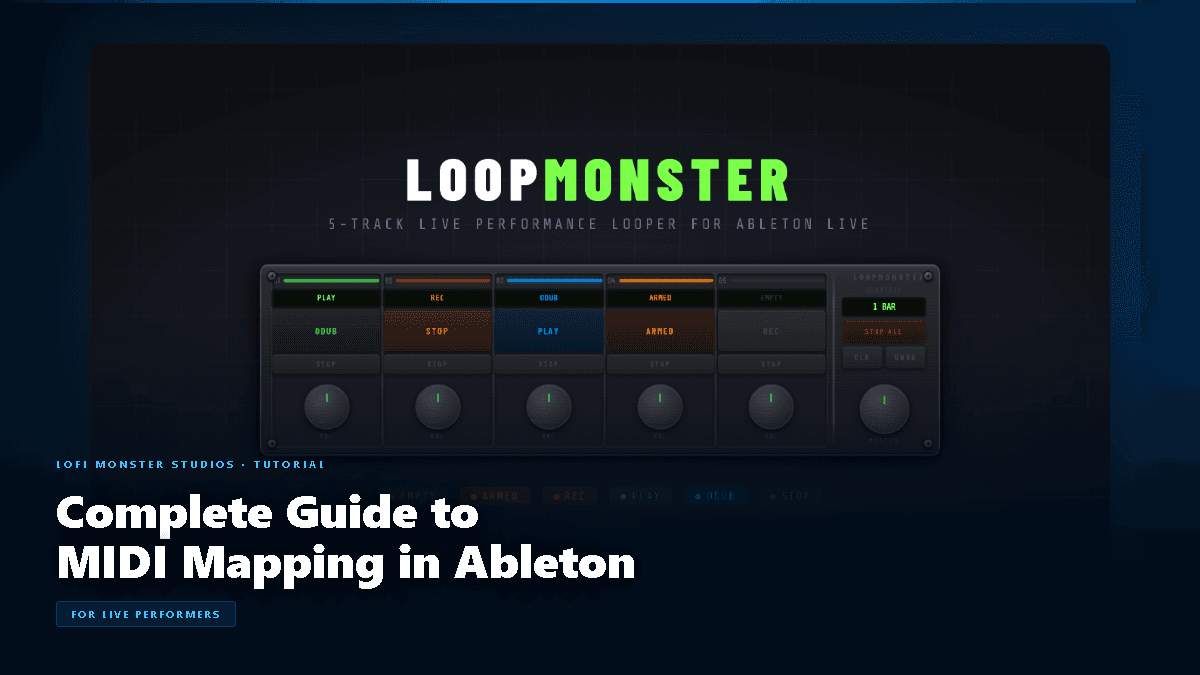
LoopMonster exposes all of its performance controls to Ableton's MIDI mapping system. Here is what to map for a complete live rig:
VOL knobs (Slots 1-4): Map each slot's volume knob to a physical fader or rotary encoder. This gives you independent level control over each loop during playback — effectively a four-channel mixer. Assign these to the four most accessible faders on your controller.
MASTER knob: Map to a dedicated fader or encoder. Riding the master output level is useful for overall dynamics and for ducking all loops simultaneously.
Action buttons (Slots 1-4): Map each slot's action button to a physical button. These trigger the state machine transitions — ARM to RECORD to PLAY to OVERDUB — so they need to be instantly reachable. Use large, tactile buttons if possible.
STOP buttons (Slots 1-4): Map each stop button to a physical button adjacent to the action buttons. Being able to stop individual slots quickly is critical for breakdowns and transitions.
Stop All: If LoopMonster exposes a global stop function, map it to a prominent button. Using Stop All for a breakdown drop (all loops cut simultaneously) is one of the most powerful live techniques available.
Footswitch Setup
For performers who play a physical instrument — keyboard, guitar, bass, saxophone — freeing your hands from controller duty is essential. A MIDI footswitch lets you trigger LoopMonster actions with your feet while your hands stay on your instrument.
Common footswitch options:
- Boss FS-7: Two-button latching/momentary switch, works with most MIDI adapters
- Behringer FCB1010: Full 10-button programmable MIDI floor controller with expression pedals — overkill for basic use, but powerful for complex rigs
- Single-button USB MIDI triggers: Minimal, cheap, and reliable for one or two mappings
How to set it up in Ableton:
- Connect your footswitch via a MIDI interface or USB MIDI adapter
- Make sure Ableton sees the device (check Preferences > MIDI > Input: enable Track and Remote for the device)
- Enter MIDI Map Mode (Cmd+M)
- Click the Action button for Slot 1 in LoopMonster
- Press the footswitch pedal
- The mapping is created
Repeat for STOP and any other controls you want foot-accessible. A two-button footswitch typically handles Action and Stop for a single slot — enough for a simple hands-free loop workflow.
Min/Max Ranges
Ableton's MIDI Map Mode lets you set minimum and maximum values for each mapping. This is visible at the bottom of the mapping list when you select a mapping.
For buttons: set min to 0 and max to 127 (full toggle), or min and max to the same value to create a momentary trigger.
For knobs and faders: you can invert the range (set min to 127, max to 0) so that turning the knob clockwise decreases the value. Useful if your controller's physical orientation does not match the expected behavior.
For volume faders: consider setting the max to around 100 (instead of 127) if you want to leave headroom and avoid accidentally blowing your levels during a performance.
Performance Tips
Use dedicated pages or banks: Most MIDI controllers let you switch between banks or pages of mappings. Create a dedicated performance page for all your LoopMonster mappings, separate from your studio/production mappings. Switching into performance mode becomes a ritual that primes you mentally for the set.
Label everything: Use a label maker or masking tape and a marker to label the physical controls on your controller that correspond to each mapping. In the heat of a live set with lights and adrenaline, you do not want to guess which button is Slot 2 Stop.
Practice the mapping: MIDI mapping knowledge is only useful if your hands know where to go without looking. Run through your live set at home multiple times with your controller so the muscle memory is built before you step on stage.
Keep critical controls accessible: ARM and REC for your most-used slot should be the easiest buttons to reach on your controller — ideally in the center, largest buttons, most distinct feel. Secondary controls (volumes, master) can be in less prominent positions.
Get Started
MIDI mapping is one of those things that takes twenty minutes to learn and a lifetime to refine. The best way to start is to open Ableton, connect your controller, enter MIDI Map Mode, and spend fifteen minutes mapping the things you reach for most during a session.
Ready to build a live looping rig around it? Get LoopMonster at lofimonster.com/products/loopmonster and map it to everything.