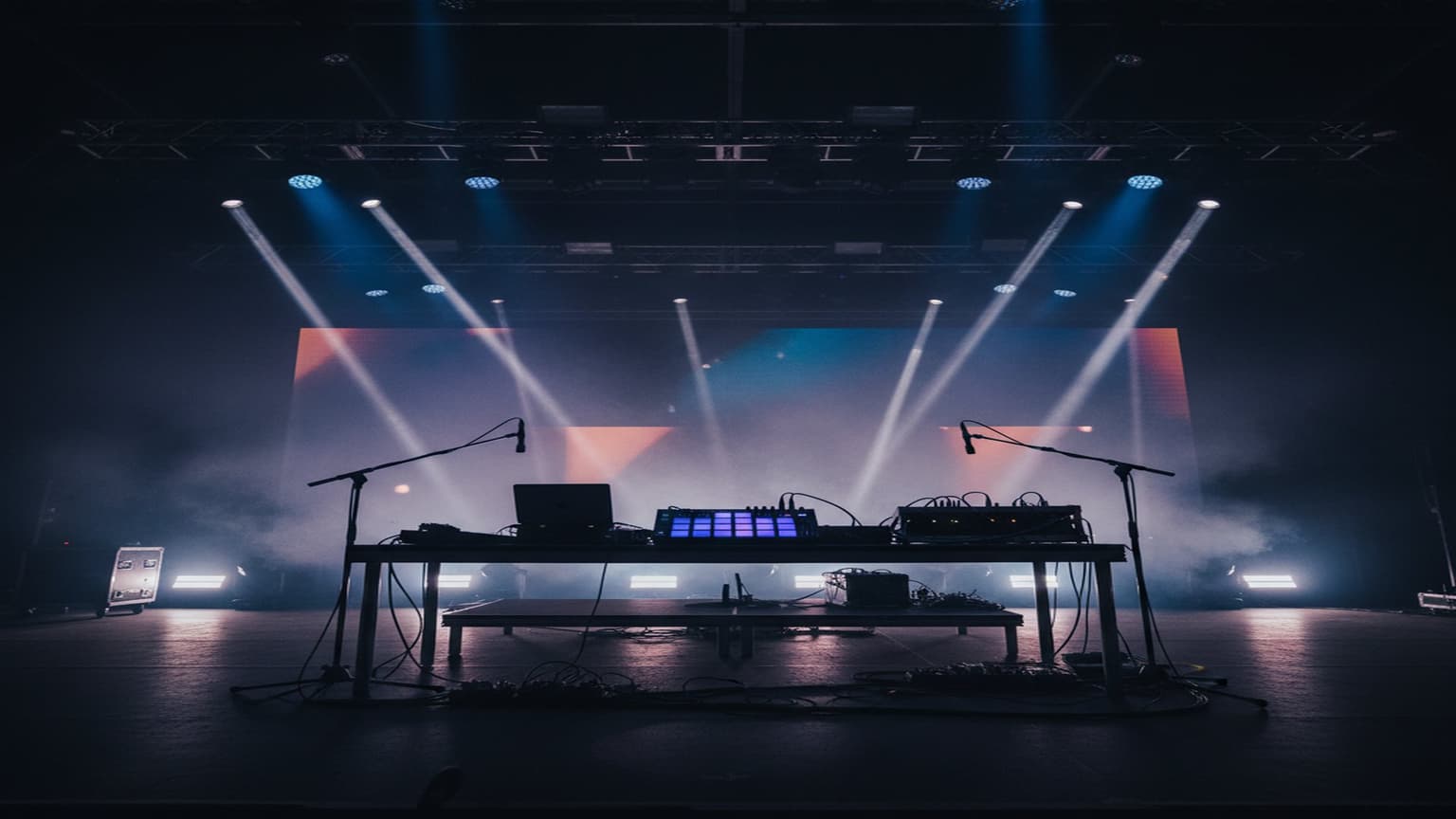
Setting Up Your Ableton Live Performance Rig: A Practical Walkthrough (2026)
Start With What You Have
The biggest mistake when building a live rig is buying gear before you've played a single show. Start with your laptop, a basic MIDI controller, and your audio interface. Play a few sets. Then figure out what's missing.
That said, there's a minimum baseline you need to not embarrass yourself on stage — and it's less gear than you might think.
The Minimum Viable Live Rig
You do not need a $5,000 setup to play a great live set. The minimum viable Ableton live performance rig is exactly three pieces of hardware:
- A laptop running Ableton Live (Suite or Standard)
- An audio interface — even a basic Focusrite Scarlett Solo gets you professional, balanced outputs to a PA
- One MIDI controller — a Launchpad Mini or a single-octave keyboard is enough to start
That's it. The rest — extra controllers, a dedicated live rig laptop, a hardware synth — is optimization, not necessity. Your first few shows will teach you exactly which gaps are worth filling. Don't spend $800 on a Push 2 before you've stood behind a monitor at a real venue and felt which controls you instinctively reach for.
Once you've gigged on the minimum rig, the upgrades become obvious. Until then, resist the gear spiral.
The Audio Chain
Audio Interface Selection
For live performance, your audio interface is the single most important piece of hardware in your live electronic music rig setup. A dropped connection or a driver crash mid-set is a career moment — the wrong kind.
What matters for live use specifically:
- Low-latency drivers — Look for interfaces that can run stable at 64–128 sample buffers without dropouts. On Windows, ASIO4ALL is a fallback, but a proper ASIO driver from the manufacturer is non-negotiable for live work. On Mac, Core Audio handles this natively, but driver quality still varies by interface.
- Balanced outputs for PA — Your interface needs balanced TRS or XLR outputs so the sound engineer gets a clean signal. A consumer interface with only unbalanced RCA or 3.5mm outputs is a liability at a real venue.
- Headphone monitoring — A dedicated headphone output with its own level control lets you cue the next clip or monitor your mix independently from the main output. This is how you catch problems before the audience hears them.
- Four outputs — Once you're playing regularly, four outputs lets you send a stereo mix to FOH and a separate click track or stem mix to your in-ear monitor system, without a Y-split.
- Bus power — One less power supply to forget at home. USB-C bus-powered interfaces are ideal for portability.
- Solid drivers — This matters more than specs. An interface with great drivers at 128 samples will outperform a technically faster interface with buggy drivers.
Real Recommendations by Budget
Budget tier ($100–200)
- Focusrite Scarlett Solo (4th gen) — The default choice for good reason. Low-latency drivers on both Mac and Windows, balanced TRS outputs, bus powered. The Solo's single input is a non-issue for live performance since you're outputting, not recording.
- Focusrite Scarlett 2i2 — Adds a second input and slightly more headroom. If you plan to ever loop a live instrument on stage, this is worth the extra $50.
Mid-range ($300–500)
- Universal Audio Volt 276 — Built-in 1176-style compressor on the input, excellent conversion, and UA's drivers are rock solid. The analog saturation mode adds character to DI signals.
- Audient iD14 mk2 — High-headroom preamps, precise monitoring, and a form factor that sits on stage without taking up real estate. The scrollwheel monitor control is genuinely useful live.
Pro tier ($500+)
- RME Babyface Pro FS — The gold standard for portable live interfaces. RME's TotalMix FX lets you create complex monitoring mixes with zero latency, and their drivers have a reputation for running flawlessly under extreme CPU load. Built like a tank. Expensive, but the cost of a single gig that doesn't fall apart pays for it.
- MOTU M4 — Four balanced outputs at a competitive price. Excellent driver stability, ESS Sabre converters, and a clean monitor mix workflow.
Signal Flow
Keep it simple:
Laptop → Audio Interface → DI Box → Venue Mixer
Always carry your own DI box. A Radial ProDI or similar passive DI eliminates ground loops and gives the sound engineer a balanced signal they can work with. Never hand them a 3.5mm cable.
MIDI Controllers for Ableton Live Performance
The right controller depends entirely on how you perform. Here's a breakdown of the hardware that consistently shows up in electronic live rigs:
Ableton Push 2 — The All-in-One
Push 2 is Ableton's own hardware controller and the closest thing to a purpose-built performance instrument for Live. The 64-pad grid covers clip launching, note input, drum programming, and step sequencing. The eight push-encoder knobs map to device parameters contextually — you turn a knob and Push tells you what it's controlling.
The upside: near-total control of Live without touching a mouse. The downside: it's large (17 inches wide), expensive (~$600 used), and takes time to learn properly. If you commit to the Push workflow, it pays off. If you just want to launch clips, it's overkill.
Novation Launchpad Pro — Grid Performance
The Launchpad Pro is an 8x8 pad grid with pressure sensitivity and a built-in sequencer. Its layout maps directly to Ableton's Session View: rows are tracks, columns are clip slots. For performers who think in loops and layers, this is a natural extension of the software.
The Launchpad's smaller footprint (fits in a laptop bag) makes it the practical choice for performers who travel light. LoopMonster users typically pair a Launchpad Pro with LoopMonster's quantized loop triggers — the grid layout makes it easy to fire loops in sync and overdub on the fly without taking your eyes off the audience.
Akai APC40 mkII — Mixer-Style Control
The APC40 mkII places a physical fader under each track, which feels more like working a mixer than a controller. If you come from a DJ or mixing background, the APC40 will feel immediately intuitive. The eight track faders, crossfader, and per-track send knobs make it natural for evolving a mix rather than launching discrete clips.
The trade-off is size — the APC40 is wide and isn't going in a backpack easily.
Foot Controllers — Hands-Free Looping
Foot controllers are underrated in the electronic live rig. When your hands are on synth keys or mixing a transition, your feet are free. Two options worth knowing:
- Roland FS-6 — A simple two-button footswitch. Map one button to loop record and one to loop overdub in LoopMonster or Ableton's Looper device. Lightweight, bus powered, just works.
- Behringer FCB1010 — Ten footswitches plus two expression pedals, all MIDI-programmable. More complex to set up, but gives you full hands-free scene launching, loop control, and parameter sweeps for a performance that looks genuinely instrument-like from the crowd's perspective.
MIDI Mapping Strategy
Don't map everything. Map the 8–12 parameters you'll actually touch during a performance:
- Filter cutoff for your main synth
- Send levels for delay and reverb
- Volume for key stems
- A macro that sweeps multiple parameters at once
- Transport controls (play, stop, scene launch)
Pro tip: Use Max for Live to create macro knobs that control multiple parameters with custom curves. One physical knob can simultaneously open a filter, increase reverb send, and reduce bass — creating smooth transitions that would be impossible with individual controls.
Organizing Your Ableton Set
Track Layout
Organize tracks left-to-right by frequency/importance:
- Drums (kick, snare, hats — grouped)
- Bass
- Chords/Pads
- Leads/Melodies
- FX/Risers
- Return tracks (delay, reverb)
Scene Organization
Create scenes that represent energy levels, not just songs:
- Scenes 1–4: Low energy / intro material
- Scenes 5–8: Building energy
- Scenes 9–12: Peak energy
- Scenes 13–16: Alternative peaks / breakdowns
This way, you can jump to any energy level based on the crowd's response.
Warping and Preparation
Before the show:
- Warp all audio clips to the same BPM range
- Set loop points and launch modes
- Consolidate clips to reduce CPU
- Freeze any CPU-heavy synth tracks that won't change during performance
- Test your entire set at home with the same buffer settings you'll use live
Backup and Redundancy
This section is the one most performers skip until something fails at a gig. Learn from other people's disasters rather than your own.
What Actually Fails at Shows
Laptop overheating is the most common silent killer. A laptop that runs your set fine at home will thermal-throttle on a hot stage with no airflow, causing audio dropouts, stuttering, and eventually a full freeze. Prevention:
- Disable Turbo Boost (Windows: via power plan settings; Mac: via
pmset) to keep the CPU running at a stable clock speed rather than spiking - Elevate your laptop with a stand — even two inches of airflow underneath makes a measurable difference
- Do a full run-through at home with the laptop in a warm room before any important show
Audio interface dropout from a loose USB connection is responsible for more mid-set crashes than almost anything else. The cable gets nudged, the interface disconnects, Ableton loses its output, and the silence is total. Solutions:
- Use a right-angle USB cable so there's no lever force on the port
- Secure the cable to your rig with a velcro tie so it can't be pulled
- On gigs that matter, carry a second, identical interface as a cold spare
Controller USB disconnect is less catastrophic (you lose control, but audio keeps playing) but still painful. Use a powered USB hub — one with its own wall adapter, not a bus-powered hub. This gives each device a dedicated power budget and eliminates the brownout disconnections that happen when a laptop's USB bus gets loaded.
CPU spikes from live plugins can cause dropouts even if your average CPU load looks fine. Use Ableton's Freeze function on any track that uses a heavy synth or sampler and won't change during the performance — Freeze renders it to audio and frees the CPU entirely. For critical tracks, pre-render them to audio clips in the arrangement as a fallback.
Pre-rendered stems as the ultimate fallback. Bounce a sterile, mixed version of your set to a stereo file and load it onto a USB drive. If everything collapses, you can hand a venue's DJ a USB stick and at least have music playing while you sort out the hardware.
The 3-2-1 Rule for Live Sets
- 3 copies of your set (laptop, external drive, cloud)
- 2 different formats (Ableton project + bounced stems)
- 1 offline backup (USB drive in your bag, not connected to anything)
Cable Management and Stage Setup
This sounds boring. It's not. Onstage cable failures are the most common cause of technical issues, and a clean stage setup projects professionalism to the sound engineer and the venue.
DI Boxes and Signal Path
The correct signal path from your interface to a venue PA is:
Audio Interface (TRS out) → DI Box → XLR → Stage Snake → FOH Mixer
A passive DI box (the Radial ProDI is the industry standard; the Behringer DI100 is the budget workhorse) converts your unbalanced instrument-level signal to a balanced, ground-isolated XLR signal that can travel 50+ feet of cable without noise. The sound engineer will thank you.
If your interface already has balanced XLR outputs (the RME Babyface Pro does; the Focusrite 2i4 and above do), you can skip the DI box and go XLR-to-XLR directly. Still use the DI box on budget interfaces — the ground isolation is worth it regardless.
XLR vs. TRS to PA: If you're connecting directly to a mixer without a snake, balanced TRS-to-XLR cables work fine for short runs (under 10 feet). For longer cable runs or noisy environments (clubs with lots of lighting gear), XLR-to-XLR via a DI is always safer.
Ground Loops
A ground loop produces a low-frequency hum through the PA and is almost always caused by two pieces of equipment sharing the same ground through different paths — typically your laptop's power supply and the venue's power circuit. Solutions:
- Use a passive DI box (ground lift switch)
- Power your entire rig from a single power strip connected to one outlet
- Use a laptop running on battery during the set (eliminates the laptop's power supply from the equation entirely)
Cable Labels and Organization
- Label every cable at both ends with masking tape and a marker (cable model, length, and which end goes where)
- Use right-angle cables at the interface end — they sit flat and are far less likely to get yanked by an accidental foot
- Carry duplicates of every cable in your rig in a separate pouch
- Velcro ties, not zip ties — reusable and won't damage cables when you pack up fast
Pre-Show Checklist
Run through this before every set, not just important ones. The habit matters more than the occasion.
At home (day before):
- Full set run-through at live buffer settings (same sample rate and buffer size as the venue)
- Freeze all CPU-heavy tracks that won't be automated live
- Confirm all samples and plugins load (no missing files)
- Back up project to external drive and cloud
- Charge laptop to 100%
Packing:
- Laptop + power cable
- Audio interface + USB cable (+ spare USB cable)
- MIDI controller + USB cable
- DI box
- XLR cables x2
- TRS cables x2
- Powered USB hub
- Headphones
- USB backup drive with stems
- Power strip (your own — don't rely on venue)
- Cable labels and velcro ties
At soundcheck:
- Connect interface before opening Ableton
- Confirm correct audio device selected in Ableton preferences
- Test main output signal reaches the mixer
- Test headphone monitoring
- Confirm MIDI controller is recognized
- Play one clip end-to-end and confirm audio at FOH
- Check laptop thermals — is the fan running before you start?
- Set laptop display sleep to Never
- Disable all notifications (Slack, email, system alerts)
- Enable Do Not Disturb / Focus mode
Frequently Asked Questions
How much RAM do I need for Ableton live performance?
16GB is the practical minimum for a modern Ableton live performance rig with a mix of plugins and samples. 32GB gives you meaningful headroom for large Kontakt libraries, complex Live sets with many tracks, and background processes that compete with Live during a show. 8GB is workable if your set is mostly audio clips with minimal real-time synthesis, but you'll hit the ceiling faster than you expect. RAM is one of the cheapest upgrades in a laptop — if you're buying a dedicated live rig machine, spec it to at least 32GB.
Do I need an audio interface for Ableton live performance?
Yes, and the reason is more fundamental than audio quality. Your laptop's built-in audio output is unbalanced, uses consumer-grade drivers not optimized for low-latency playback, and will create a ground loop the moment you connect it to a PA. A dedicated interface gives you:
- ASIO/Core Audio drivers with stable, low-latency performance
- Balanced outputs that the venue's mixer can work with
- Headphone monitoring independent from the main output
- Proper signal levels (line level vs. the laptop's headphone-level output)
Even a $100 Focusrite Scarlett Solo makes a night-and-day difference compared to the laptop's headphone jack.
Can I use a MacBook or do I need a dedicated music PC?
A MacBook is the most common laptop in professional electronic live rigs for good reason: Core Audio drivers are class-leading, thermals are well-managed on Apple Silicon, and macOS's real-time audio priority handling is mature. An M1 or M2 MacBook Air running Ableton Live 12 will outperform a $2,000 Windows laptop on raw audio stability.
That said, a well-configured Windows machine (Intel or AMD, with ASIO drivers and proper power plan settings) runs Ableton Live just fine. The key Windows-specific steps: disable Turbo Boost, set the power plan to High Performance, disable all background startup processes, and use your interface manufacturer's official ASIO driver — never ASIO4ALL for live work if a native driver exists.
If you're buying a dedicated live rig laptop and price is a consideration, the MacBook Air M2 is hard to beat for the combination of battery life, thermal performance, and driver stability.
Conclusion
Building a solid electronic music live performance setup is less about having the best gear and more about knowing your gear deeply. The performers who never have technical issues on stage aren't the ones with the most expensive rigs — they're the ones who've stress-tested every cable, practiced every transition, and built in enough redundancy that a single hardware failure doesn't end the night.
Start with the minimum viable rig: laptop, interface, one controller. Play shows. Add gear where you feel friction, not where gear reviews tell you to. Keep your Ableton set organized, your CPU managed, and your cables labeled.
When you're ready to add looping to your live rig, LoopMonster is built exactly for this context — a Max for Live looper with 5 quantized tracks, overdub, and a layout designed for live performance rather than studio experimentation. It drops into any existing Ableton Live set without restructuring your session. See LoopMonster →
For deeper technique, explore how Max for Live can enhance your performances and smooth transition techniques between tracks.
Ready to build your rig? LoopMonster — 5-track quantized looper, Max for Live, no external hardware needed. Add it to your live setup →